







Credit Card Changes – Effective September 21, 2026
We’ve updated our credit card program to upgrade the way you manage your credit cards online and to streamline your credit card experience.
Actions to Take
On or after September 22
- IMPORTANT: If you scheduled payments through MyCardStatement or eZBusiness, we were unable to transfer those payments. Please log into your new card management system to re-establish these payments and avoid missed or late payments.
- Log into your credit card account online, using the instructions below, to:
o Validate all credit card autopayments converted and ‘Autopay’ is turned on in the new system.
o Sign up for electronic statements.
o Submit travel plans. - If you were issued a new card, activate it and update your credit card information in Bill Pay and with any merchants where your card is used to make regularly scheduled payments
- Please note: If you saved Business or Commercial card nicknames in the old system, these did not convert to SpendTrack.
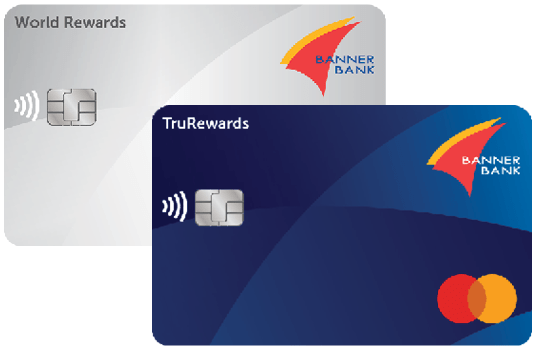
Personal TruRewards and World Rewards Credit Card Account Access
2. Select the “Manage Cards” menu
3. Select “Card Manager”
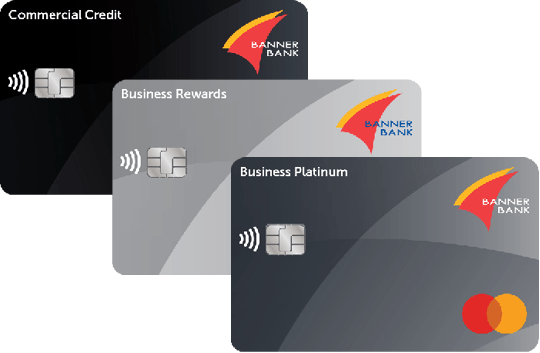
Business and Commercial Credit Card Account Access
Company Owners and Primary Program Administrators
Register as a Primary Program Administrator:
- Login to your Banner Bank Online Banking account
- Select Manage Card
- Select "SpendTrack"
- Follow the on-screen instructions
Please note, your will need your company’s EIN/Tax ID, the primary contact phone number registered to your company’s credit card account and your credit card number or, if you are not a cardholder, any credit card number belonging to your company, to register as the primary program administrator. Once registered, you will be able to access account information and manage users.
Employees
Register as an individual cardholder:
- Go to the bannerbank.com homepage
- Select the “Access Your Account” dropdown menu
- Select “SpendTrack”
- Follow the on-screen instructions
Credit Card Tips and Tricks
Peruse the guides and step-by-step demos linked below for helpful tips and tricks to using online and mobile banking and our new credit card management tools.
| Personal Credit Card Resources | Business and Commercial Credit Card Resources |
| Redeem Card Rewards | SpendTrack Information |
| SpendTrack Demo | |
| Redeem Card Rewards |
Credit Card Agreements
- Banner Bank TruRewards and World Rewards Mastercard® Credit Card Agreement – Effective September 21, 2026
- Commercial Credit Card Agreement – Central Billing – Effective September 21, 2026
- Commercial Credit Card Agreement – Individually Billed – Effective September 21, 2026
- Commercial One Credit Card Agreement – Effective September 21, 2026
- Banner Bank Business Rewards Mastercard Credit Card Agreement – Effective September 21, 2026
- Banner Bank Business Platinum Mastercard Credit Card Agreement – Effective September 21, 2026